
Spotify for Creators is where you manage your podcast on Spotify. This guide shows you how to claim a show that already has a podcast host, or launch a brand-new show hosted on Spotify.
Last updated October 2026
About 10 minutes
Quick answer
To set up Spotify for Creators, log in at creators.spotify.com with a Spotify account. If your podcast already has a host, choose Find an existing show, then Somewhere else, enter your RSS feed and type in the 8-digit code Spotify emails to your feed's address. To start fresh, choose Create a new show.
Before you start
Step by step
Already have a podcast host? Follow steps 1 to 4. Starting fresh on Spotify? Skip to step 5. Step 8 is for everyone.
Path A: your show already has a podcast host
1
Spotify sends a verification code to the email address listed in your RSS feed. Many podcast hosts hide this address. Open your host's settings, make sure your email is shown in the feed, and check that you can get into that inbox.
Tip: Use an email address the show's owner controls, not a producer's personal inbox.
2
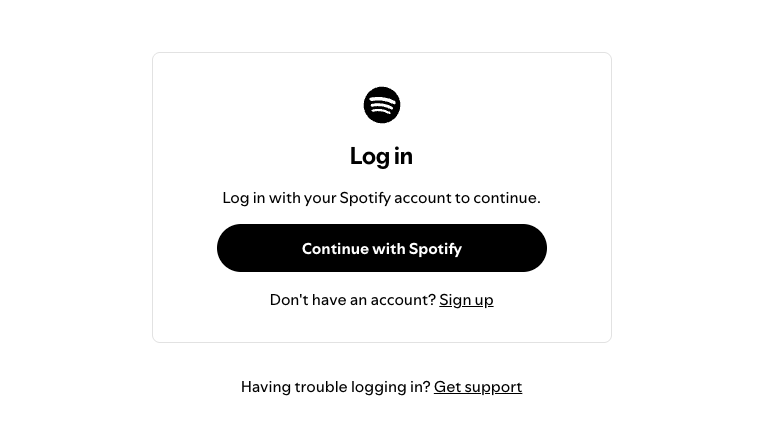
Go to creators.spotify.com and log in with your Spotify account. If you still use an old Anchor email login, you'll need to switch it to a Spotify login first.
3
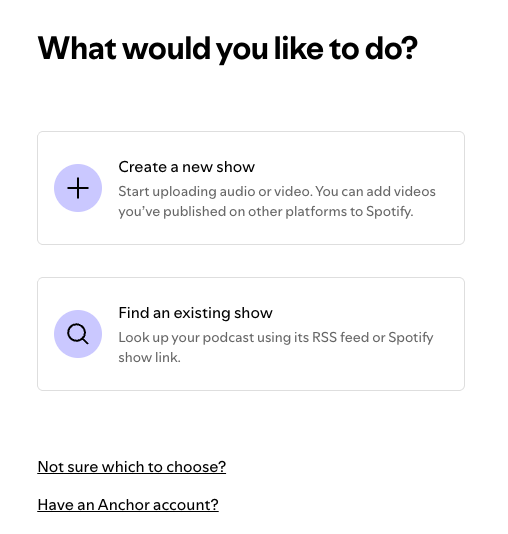
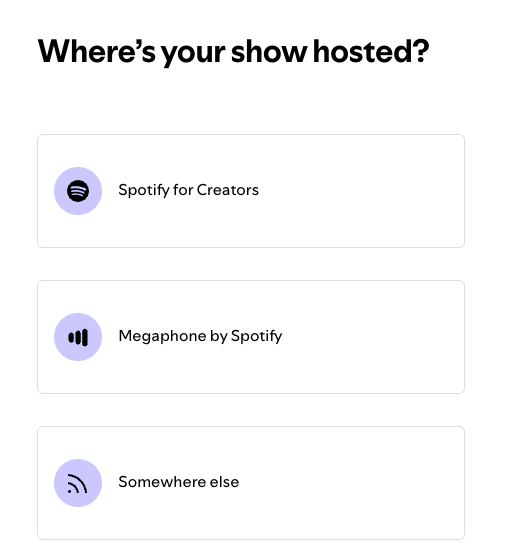
New to Spotify for Creators? Choose Find an existing show, then Somewhere else.
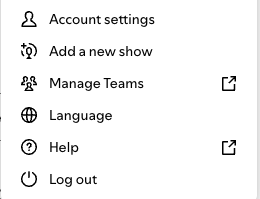
Already managing another show? Click your avatar or the three lines (top right), choose Add a new show, then Find an existing show → Somewhere else.
4
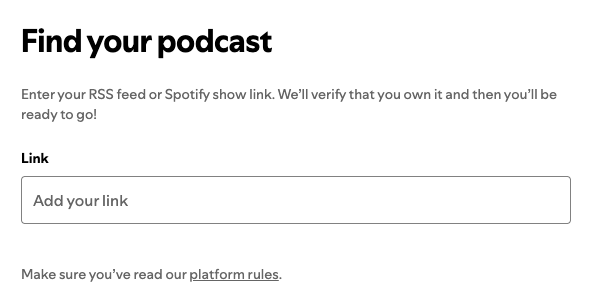
Paste in your RSS feed URL (or your Spotify show link). Spotify emails an 8-digit code to the address in your feed. Enter the code in the form. Once it's accepted, you're the show's admin.
Tip: A show can only be claimed once. If someone else already claimed it, the current admin needs to invite you.
Path B: starting a brand-new show on Spotify
5
Go to creators.spotify.com and log in with your Spotify account. Click your avatar, then Add a new show, and choose Create a new show. On mobile, tap your avatar first.
6
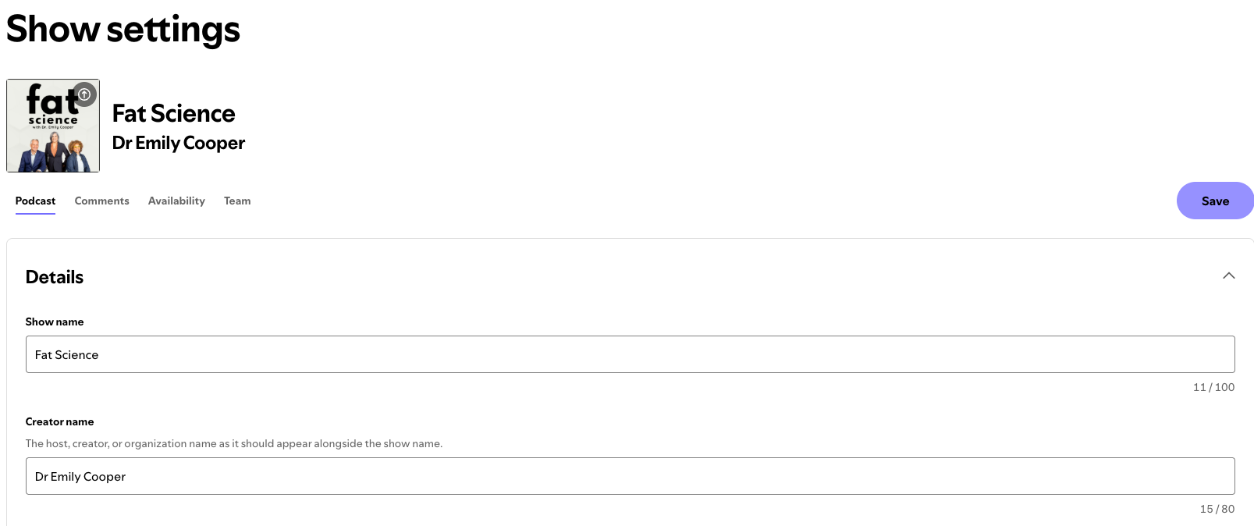
Fill in the details Spotify asks for, such as your show name and description, and upload your cover art. Take your time here. It's the first thing listeners see.
7
Upload your first episode as audio, video or both. Episodes publish to Spotify automatically. Once your first episode is live, you can also distribute your show to other platforms.
Both paths
8
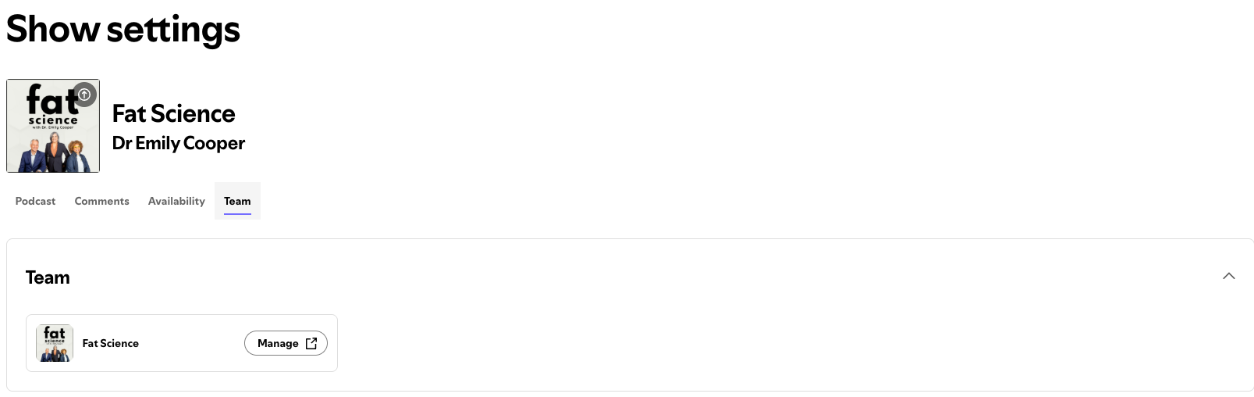
Don't share your login. Invite your producer or agency as a team member so they get their own access. Each person needs their own Spotify account, and team settings are on the web, not in the mobile app.
To give your producer access, see our guide: How to Add a Team Member to Your Podcast.
Troubleshooting
The code goes to the email address in your RSS feed. Many hosts hide it. Turn the email on in your host's settings, check your spam folder, then try again.
A show can only be claimed once. If a former producer or an old Anchor account claimed it, the current admin has to invite you to the team.
Accounts created with an Anchor email login need to switch to a Spotify login. Follow Spotify's login help page to move your account over.
A show usually needs at least one published episode before it appears on Spotify. Publish a trailer or first episode, then check again.
Team settings are only on the web, not in the mobile app. Log in at creators.spotify.com on a computer and look under Settings.
On an account with several shows, the access you give someone applies to all shows on that account. Keep that in mind before inviting anyone.
Questions
What is Spotify for Creators?
Spotify for Creators is Spotify's dashboard for podcasters to publish episodes, see analytics and manage their team. It used to be called Spotify for Podcasters, and before that, Anchor.
Do I have to move my podcast host to use Spotify for Creators?
No. You can keep your current host and claim your show on Spotify for Creators using your RSS feed. Your episodes keep coming from your host as normal.
Why didn't I get the Spotify verification code?
Spotify for Creators sends the code to the email address in your RSS feed. If your host hides that address, turn it on in your host's settings and request the code again.
Can two people claim the same show on Spotify?
No. A show can only be claimed once on Spotify for Creators. If someone already claimed it, ask the current admin to invite you to the team.
Should I give my producer my Spotify login?
No. In Spotify for Creators, invite your producer as a team member instead. They use their own Spotify account, and you choose what they can access.
Official help
These are the official help pages for each step. Platforms update their menus often, so check here if a button has moved.
Claiming your podcast on Spotify for Creators →
Adding a new show to your Spotify for Creators account →
Logging into Spotify for Creators →
Not affiliated with Spotify. Steps checked in October 2026. Menus may change.
Next step
With Spotify sorted, Apple Podcasts is the next big directory to set up. You'll submit the same RSS feed in Apple Podcasts Connect, so keep your feed URL handy.
Book an Introduction CallPodcast Impact Studio helps purpose-driven hosts launch and grow their shows.