
Invite a producer, editor or agency to Spotify for Creators, Apple Podcasts Connect and YouTube Studio with the right role on each. You stay the owner the whole time.
Last updated October 2026
About 15 minutes
Quick answer
To add a team member to your podcast, invite them from each platform's settings instead of sharing your password. In Spotify for Creators use Settings → Team, in Apple Podcasts Connect use Account → People, and in YouTube Studio use Settings → Permissions. Amazon Music for Podcasters had no invite feature when we checked. You keep ownership.
Pick the right role
Spotify for Creators
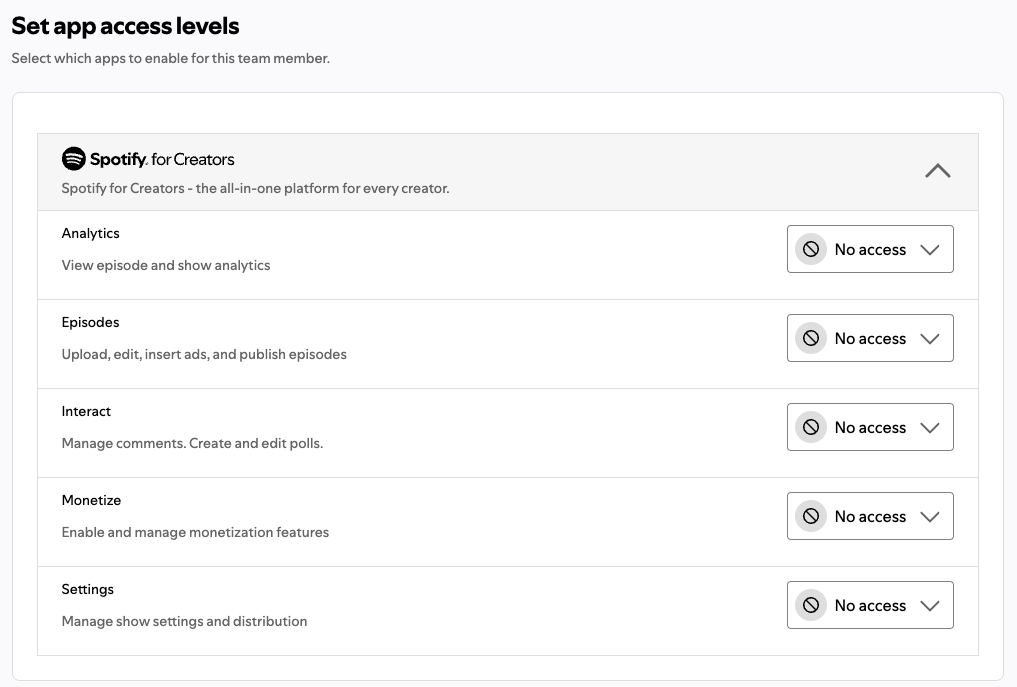
You choose an access level for each area: Analytics, Episodes, Interact, Monetize and Settings. Levels are Reader (view only), Editor or Manager. Make them a team admin only if they will manage the team.
Apple Podcasts Connect
Manages shows and episodes. Add Analyst if they report on your stats. Keep Admin and Legal with the show owner.
YouTube Studio
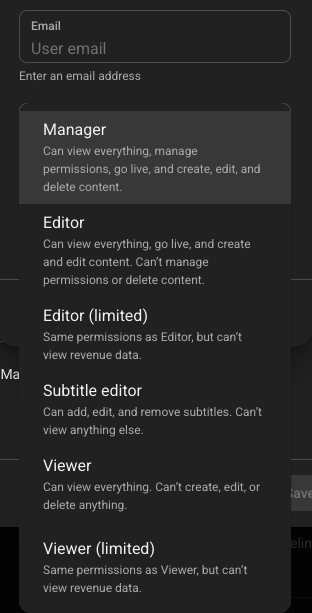
Can upload and publish without seeing revenue data. Use Editor if they need more, and Manager only if they must manage other users or live streams.
Amazon Music for Podcasters
When this guide was written there was no way to invite a user. Keep the login yourself and share reports instead of your password.
Before you start
Step by step
Repeat these steps on each platform where your show is listed. Each person signs in with their own account, so no one ever needs your password.
Recommended role: access set per tab
Show not set up on Spotify yet? Start with the Spotify for Creators guide →
1
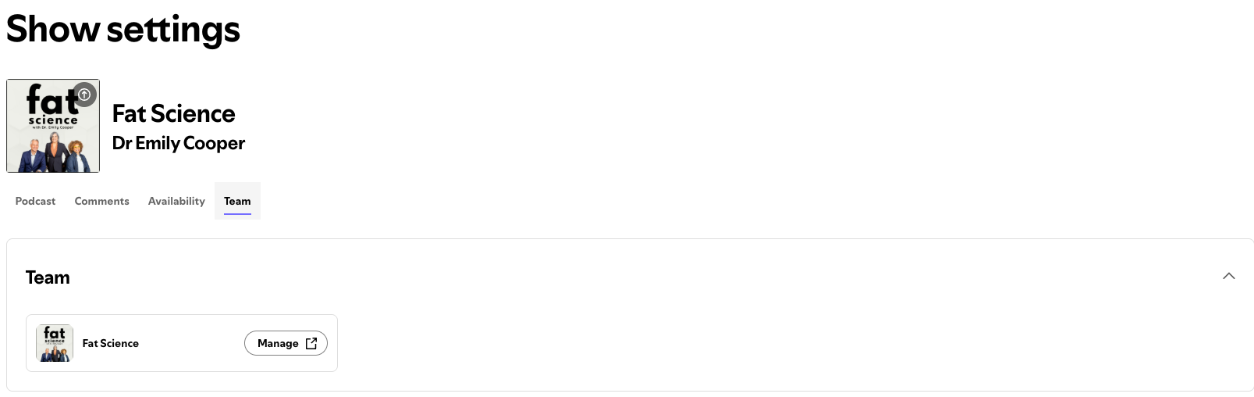
Go to creators.spotify.com on a computer and click Settings in the left sidebar. You can't invite team members from the mobile app.
2
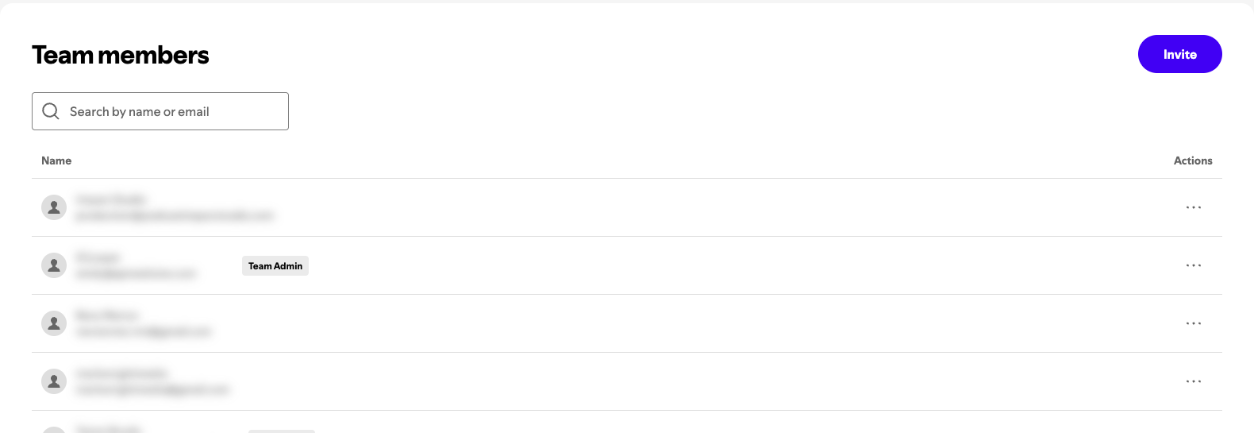
Click the Team tab, then Manage. Spotify Manage opens in a new tab. Click Invite.
3
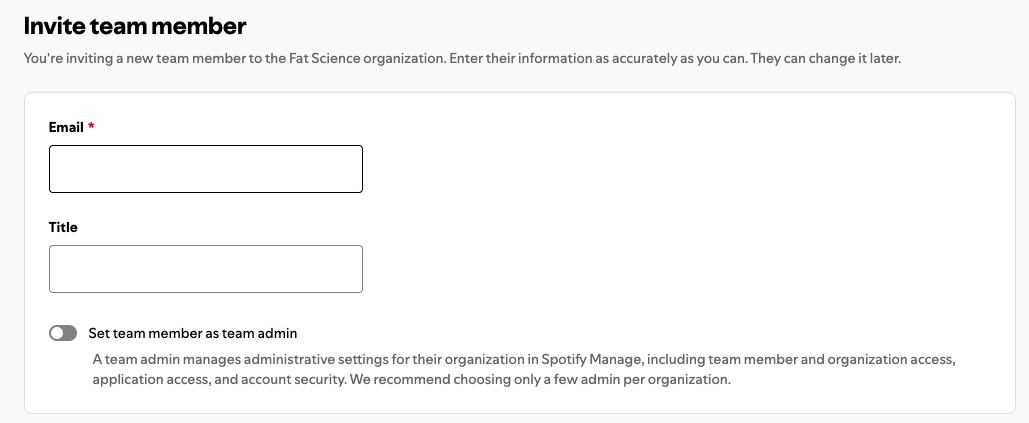
Enter their email (a job title is optional) and click Next. On Set app access levels, choose a level for each area: Analytics, Episodes, Interact, Monetize and Settings. Reader can view only; Editor and Manager can make changes. Then click Invite.
Tip: Only turn on Set team member as team admin if they need to manage your whole team.
4
Click Invite. Spotify emails them the steps to join. They will need their own Spotify account.
To remove someone later, go to Settings → Team → Manage, click their name and choose Remove team member.
Recommended role: Show Manager
Show not on Apple Podcasts yet? Start with the Apple Podcasts Connect guide →
1
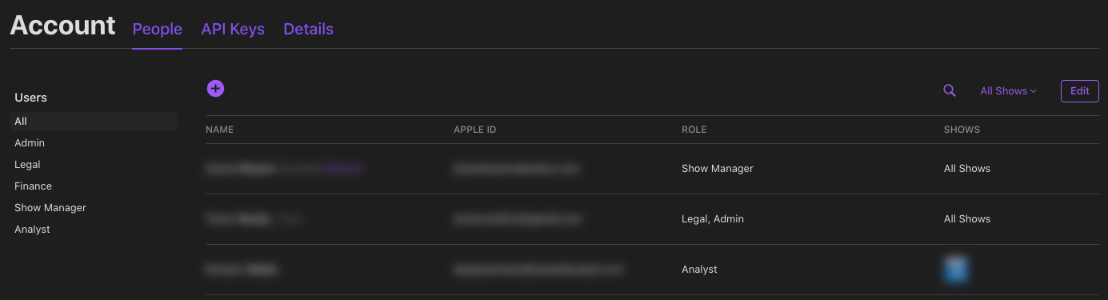
Sign in at podcastsconnect.apple.com with your Apple Account. Only an Admin can add users.
2
Go to Account, then People, and click Add (+).
3
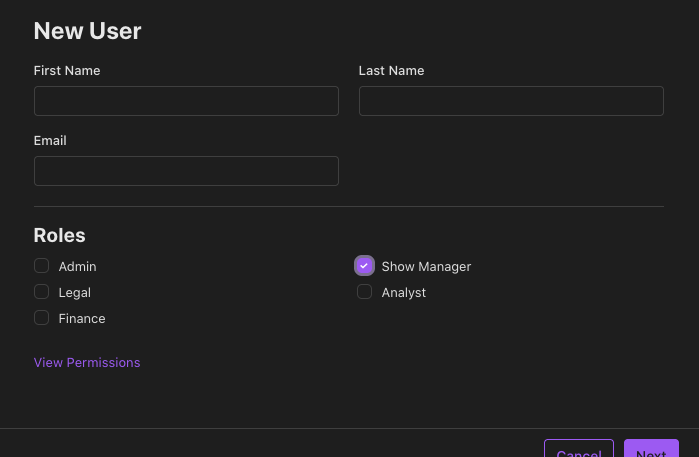
Enter their first name, last name and email. Choose Show Manager, and also Analyst if they report on your stats.
Tip: Keep Admin and Legal with the show owner.
4
Choose which shows they can access (the default is all shows), then click Invite. If their email isn't an Apple Account yet, Apple asks them to create one with two-factor authentication.
A person has the same role on every show they can access. You can change or remove their access later from the same People page.
Recommended role: Editor (Limited)
Show not on YouTube yet? Start with the YouTube Podcasts guide →
1
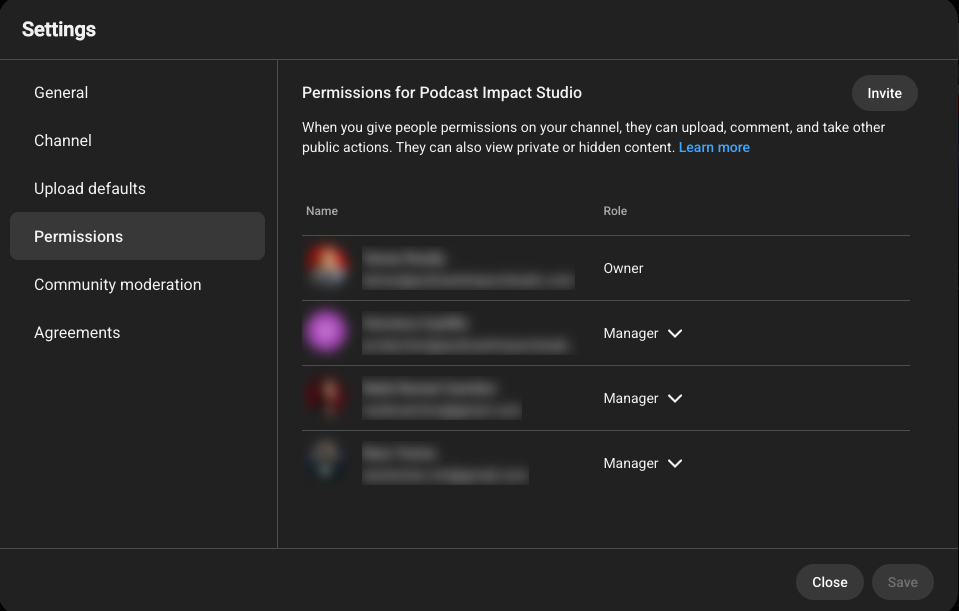
In YouTube Studio, go to Settings → Permissions. Only an Owner or Manager can invite people.
2
If your channel still uses Brand Account roles, you'll first need to move permissions to YouTube Studio. Most channels can skip this step.
3
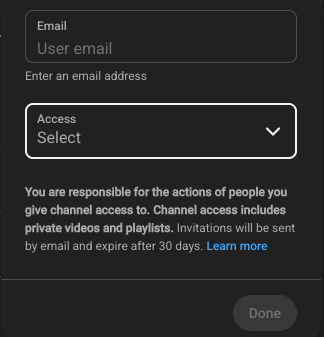
Click Invite and enter their Google account email. Then choose a role. Editor (Limited) can upload and publish but can't see revenue data. Choose Editor if they need more, and Manager only if they must manage other users or live streams.
Tip: Editors can't delete published content or manage permissions, so you stay in control.
4
Save the invite to send it. Invites expire after 30 days, so ask them to accept soon.
You can change or remove their access later in the same Permissions menu.
Recommended role: none available yet
Show not on Amazon Music yet? Start with the Amazon Music guide →
1
When this guide was written, Amazon Music for Podcasters didn't appear to offer a way to invite a team member or set user roles. Look around your dashboard at podcasters.amazon.com in case this has changed.
2
If there's still no invite option, keep the login yourself and share screenshots of your stats with your producer. It's best not to hand over your Amazon password.
3
Amazon checks ownership through the email in your RSS feed. Make sure that address is one you control, not your producer's.
Troubleshooting
Check your own role. On Apple only an Admin can add users, and on YouTube only an Owner or Manager can invite. On Spotify, use a computer, not the mobile app.
Inviting an Admin fails if that person's Apple Account has no payment method. Ask them to add one, or give them Show Manager instead.
Admins can't change a user's name or email in Apple Podcasts Connect. Remove the person, then invite them again with the right details.
YouTube invites expire after 30 days. Send a new one from Settings → Permissions and ask them to accept it soon.
On a Spotify for Creators account with several shows, the access you give applies to every show on that account. Plan roles with that in mind.
Don't share it. Each person should use their own account. On Apple, two-factor codes go to the owner's devices, so a shared login causes problems anyway.
Questions
Should I share my podcast password with my producer?
No, Spotify for Creators, Apple Podcasts Connect and YouTube Studio all let you invite your producer to use their own account instead. You keep ownership, and you can change or remove their access later.
What role should I give my producer in Apple Podcasts Connect?
Show Manager is usually the right Apple Podcasts Connect role for a producer. It covers shows and episodes. Add Analyst if they report on your stats, and keep Admin and Legal for the show owner.
What's the difference between Editor and Editor (Limited) on YouTube?
On YouTube, Editor (Limited) works like Editor but can't see revenue data. Both can upload and publish, but neither can delete published content or manage permissions.
How do I remove a team member later?
In Spotify for Creators, go to Settings → Team → Manage, click the person's name and choose Remove team member. On Apple and YouTube, you can change or remove access in the same menu you used to invite them.
Can I add a team member to Amazon Music for Podcasters?
Amazon Music for Podcasters didn't offer a team invite feature when this guide was written. Keep the login yourself and share screenshots of your stats instead of your password.
Official help
These are the official help pages for each step. Platforms update their menus often, so check here if a button has moved.
Spotify for Creators: Inviting your team to manage a show →
Spotify for Creators: Access levels →
Apple Podcasts Connect: Users and access →
YouTube Help: Add or remove access to your YouTube channel →
Not affiliated with Spotify, Apple, Amazon or Google. Steps checked October 2026; menus may change.
Next step
Your team now has its own access on every platform. Head back to Podcast Setup to pick your recording tool and get ready for your first session.
Podcast Impact Studio helps purpose-driven hosts launch and grow their shows.